Devani Hosting gives you a single MCP connection that controls every site on your account from one chat in Claude (or any MCP client). You connect once — new sites you create show up automatically.
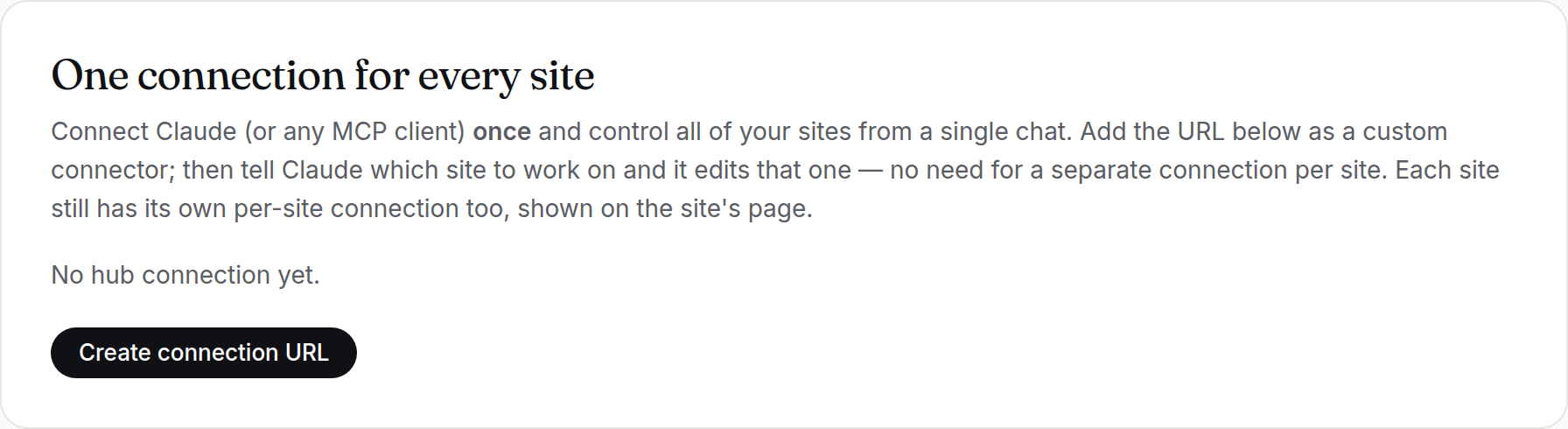 In your dashboard: Account → “One connection for every site.” Click Create connection URL to generate your connector URL.
What you need
- A Devani Hosting account (the hub connection is available on all plans, including Free).
- Claude (claude.ai) with custom connectors, or any MCP-capable client.
Steps
- In Claude, go to Settings → Connectors → Add custom connector.
- Paste this URL:
https://app.devani.io/api/mcp- Click Connect. Claude opens a Devani sign-in page.
- Sign in with your Devani account and click Allow.
That's it — no API key to copy or paste. Claude now has a tool connection that can read and edit every site on your account.
How to use it
Every tool takes a site argument. Start by asking Claude to list your sites, then tell it which one to work on:
> “List my sites.” → “On acme.devani.studio, create an About page with…”
Each request reads and writes only the one site you name. As you add more sites, they appear automatically the next time Claude lists them — you never reconnect.
Connecting a single site instead
Every individual site also has its own per-site connection, shown on that site's page — handy if you ever want to connect one site in isolation. The hub connection above is the easy default.
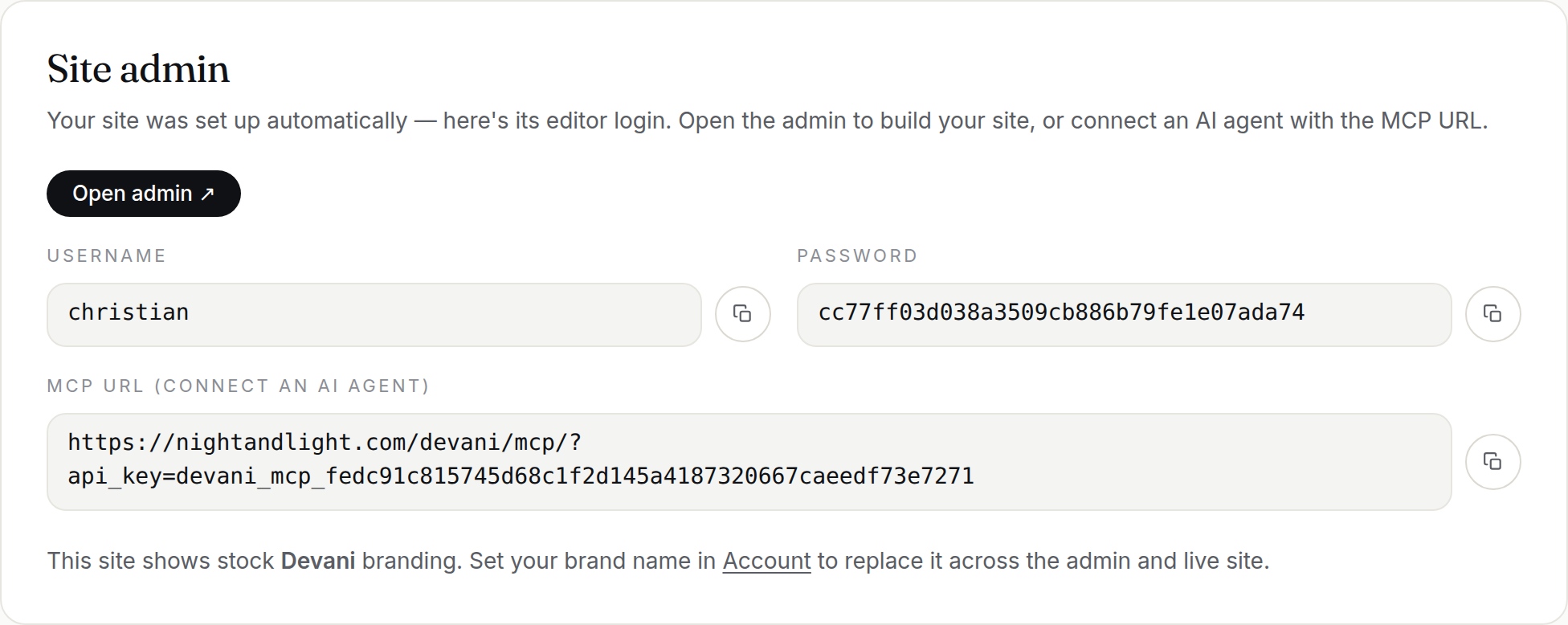 Open any site from your dashboard and find its own MCP URL under Site admin.
Notes
- Access is tied to your login. Revoking is done from your account; rotating just means re-running the Connect step.